

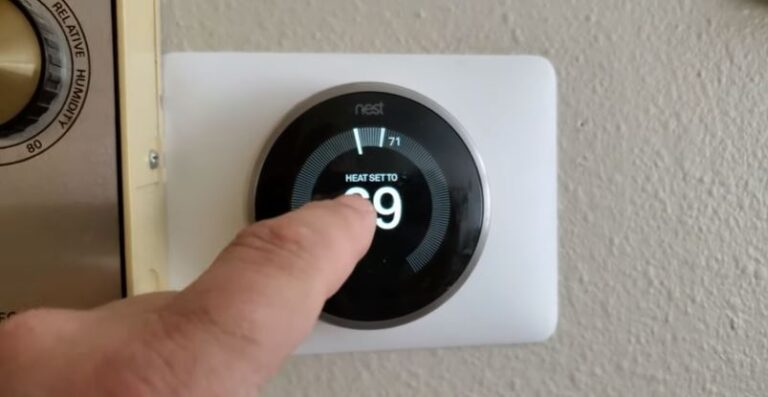
Tired of the relentless low battery messages on your Nest thermostat? Our troubleshooting guide has you covered! Discover expert tips and practical steps to troubleshoot and resolve the Nest Thermostat Low Battery Message Problem, reclaim control, and enjoy a hassle-free heating and cooling experience.
 Part of our complete Nest Thermostat guide — wiring, setup & troubleshooting.
In general, the repetitive low battery message on a Nest thermostat can be caused by various factors, including a stuck Battery tab between contacts during installation, a low or defective battery, a dying transformer affecting power supply, the absence of a C wire for consistent power, firmware glitches, or a defective thermostat itself.
Lets now go straight into these causes and how to deal with each of them in detail.
Causes of the repetitive low battery message on Nest thermostat
| Cause | Solution |
| Battery tab stuck on between Contact ( common only new Installations) | Remove battery tab |
| Low Battery/ Defective battery | Replace batteries |
| A dying transformer | Replace |
| Lack of C wire | Connect c Wire |
| Firmware gitch | Reset your Nest |
| Defective thermostat | Thermostat needs replacement |
Battery tab stuck between contacts (for new installations only)
If you have recently installed a nest thermostat and you are getting a low battery message which is not expected, ensure that you have removed the battery table between the contacts.
If you have already installed your thermostat on the wall, pull it off its bases and take a look at the back of the display.
Remove the batteries, make sure there is no tab stuck between the contact and seat the batteries back into the compartment making sure that they are facing the right way.
Check if the problem is resolved. If not you might want to contact support for help or possible replacement.
Read also: How To Replace Battery In Nest Thermostat Effortlessly In Seconds
The fix
The best fix for this problem is to replace the defective or dying thermostat batteries with new ones. Also make sure that the battery is compatible with the Nest thermostat and has the correct voltage rating. Correct replacement of batteries should stop the repetitive low battery messages should cease
Defective/ Low Battery
A defective thermostat battery can cause repetitive low battery messages on a Nest thermostat due to several reasons.
Firstly, a faulty battery may have a reduced capacity or be unable to hold a charge properly.
As a result, the battery may drain quickly, leading the thermostat to detect low battery levels frequently and display repeated low battery notifications.
Secondly, a defective battery can have inconsistent voltage output or unstable power delivery.
This can cause voltage fluctuations or intermittent power interruptions, triggering the thermostat’s low battery detection mechanism.
Even if the battery is not actually low on charge, the inconsistent power supply can lead to erroneous low battery messages.
Read also: How to Fix E298 Nest ‘No power’ Code
Bad Transformer
When your 24 volt transformer is dying or not putting out enough voltage to provide continuous power to your nest, your nest will be quickly draining up your battery no matter how many time you try to chagrin your thermostat battery.
The best solution to this problem is to replace your transformer.
How do you diagnose a bad transformer? Use a voltmeter to measure the voltage between the C and R terminals of the furnace terminal block. That is the contacts where the wires from your thermostat touch on the furnace.
There are systems that may not have the c wire, don’t worry, if there is a c terminal, just test the voltage between the C and R terminals. It should read around 24 volts. If the voltage is significantly lower, it may indicate a problem with the transformer.
Read also: How To Fix N260 Code On Nest Thermostat
Lack of C wire
Another common reason for the persistent low battery message on your Nest thermostat is simply Lack of a “C” wire: If your thermostat doesn’t have a “C” wire connected, it can cause issues with charging the battery.
The “C” wire provides a constant power supply to the thermostat, and without it, the battery may not charge properly.
This is one of the commonest reasons a Nest thermostat repeatedly displays low battery messages.
Read also: Nest Thermostat Keeps Changing Temperature
The fix
Install a C wire
The C wire, also known as the common wire, provides a continuous power supply to the thermostat.
If your HVAC system has an unused wire in the thermostat cable, you can connect it to the C terminal on both the thermostat and the HVAC control board.
This will provide a dedicated power source for the Nest thermostat.
Use a power extender kit
If you don’t have a C wire but have an extra wire in the thermostat cable, you can utilize a power extender kit (commonly referred to as a “PEK”).
The PEK connects to the HVAC control board and the Nest thermostat, acting as a bridge to provide a constant power supply without the need for a C wire.
Read also: Nest thermostat common problems fixed
Utilize an add-a-wire device
An add-a-wire device allows you to split an existing wire to create an additional conductor. By using this device, you can repurpose an unused wire in the thermostat cable as a C wire, providing power to the Nest thermostat.
Install a new thermostat cable
If none of the above options are feasible or practical, you may consider running a new thermostat cable that includes a C wire.
This solution requires more effort and may involve drilling holes and running wires through walls, so it’s advisable to seek professional assistance if you’re not experienced in this type of installation.
Read also: How To Fix N260 Code On Nest Thermostat
Firmware glitch
A thermostat firmware can cause a repetitive low battery message on a Nest thermostat due to several potential factors. One possible cause is a software bug or glitch in the firmware that incorrectly detects and reports low battery levels.
This could be triggered by a specific combination of software instructions or conditions that result in erroneous battery level measurements.
Another possibility is a firmware issue that affects the power management system of the thermostat.
If the firmware fails to optimize power consumption or accurately monitor battery usage, it may lead to premature battery drain or inaccurate battery level reporting. This can result in repetitive low battery message
To fix this problem, try updating the thermostat firmware to the latest version if there is any pending update.
Firmware updates often include bug fixes and enhancements that can resolve such issues. You might also want to reset your thermostat to see if that fixes the problem.
Bad thermostat
A malfunctioning thermostat may have faulty circuitry or sensors that inaccurately detect the battery’s charge level. This can lead to false readings of low battery and trigger repeated notifications.
In addition to that , a defective thermostat may have issues with its power management system, causing excessive power consumption or inefficient battery usage.
This can result in the battery draining faster than normal, leading to repetitive low battery alerts.
Furthermore, physical damage or wear and tear to the thermostat’s battery compartment or connections can disrupt the power flow.
Loose or corroded connections can intermittently interrupt the power supply, causing the thermostat to detect low battery levels and display repetitive notifications.
The fix
In such a scenario, the best fix is to replace the defective thermostat with a new one.
Fina thoughts
To wrap it up, dealing with a repetitive low battery message on your Nest thermostat can be quite annoying. However, there are a few things you can try to fix the issue.
First, make sure you have the latest firmware installed on your thermostat by updating it. This simple step can often resolve any software glitches causing false low battery readings.
If updating the firmware doesn’t do the trick, it’s time to check the battery itself. Swap it out with a new, compatible one to ensure a steady and reliable power supply.
Sometimes, a worn-out or defective battery can be the culprit behind the repetitive low battery messages.
Don’t forget to inspect the battery compartment and connections for any visible damage or loose connections. Cleaning or repairing them if necessary can help maintain a consistent power flow.
In case none of these steps solve the issue, don’t hesitate to reach out to Nest customer support for a second opinion or consult a local professional technician.
Helpfu resources:


