
Are you feeling a little overwhelmed by your Nest Thermostat? You’re not alone!
 Part of our complete Nest Thermostat guide — wiring, setup & troubleshooting.
Many users experience moments when they need to reset their devices due to various reasons like connectivity issues, changes in the home’s HVAC system, or simply wanting to give their thermostat a fresh start.
But don’t worry, resetting your Nest Thermostat is a straightforward process. This easy-to-follow guide will help you reset your device quickly and efficiently. Let’s dive in!
Why You Might Need to Reset Your Nest Thermostat

Before we jump into the reset process, it’s essential to understand why you might need to reset your Nest Thermostat. Here are a few common reasons:
Troubleshooting Issues
Sometimes, your thermostat may not respond as expected. If it’s having trouble connecting to Wi-Fi, displaying incorrect temperatures, or not regulating your home’s climate properly, a reset might be your best bet.
Setting Up a New Home
If you’ve moved into a new home or changed your HVAC system, resetting your thermostat can help eliminate any conflicting settings with the prior configuration.
Preparation for Selling or Returning
If you’re planning to sell your thermostat or return it, performing a factory reset will erase all your personal data and settings, ensuring that the next user won’t have any access to your information.
Types of Resets
Nest thermostats can be reset in a couple of different ways, depending on whether you need a standard reset or a factory reset.
A standard reset is typically used to fix minor issues, while a factory reset wipes all settings and restores the thermostat to its original state.
Step 1: Prepare Your Thermostat
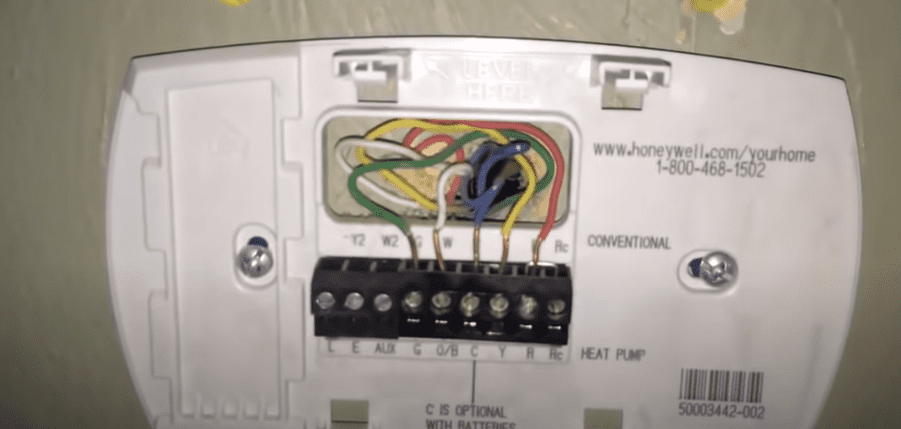
Before you begin resetting your thermostat, ensure that you have access to it and that it is connected to power. If the display is not on, check the wiring and power supply to make sure they are intact.
Step 2: Standard Restart
For a standard restart, start by tapping the display of your Nest Thermostat to wake it up. Then, rotate the ring until you see the Settings icon, which looks like a gear, and press it.
Scroll to the Reset option and select Restart. Follow the on-screen instructions to confirm the restart. Your thermostat will turn off and on again, which might take a couple of minutes. After the restart, check if the issues have been resolved.
Step 3: Factory Reset

If a standard restart doesn’t solve the problem, you may need to perform a factory reset. To do this, tap the thermostat display to wake it up, then rotate the ring to find and select the Settings icon.
Scroll down to select the Reset option, and then choose Factory Reset.
A warning message will appear, indicating that this action will erase all settings. Confirm the reset by selecting Yes. The process may take a few moments.
Once complete, the screen will prompt you to set up the thermostat from scratch. Follow the instructions to reconnect to your Wi-Fi, set temperature preferences, and configure your heating and cooling system.
Step 4: Reconnect to Wi-Fi
After resetting, especially if you performed a factory reset, you will need to reconnect your Nest Thermostat to your Wi-Fi network.
Go to the Wi-Fi settings, select your network from the list, and enter your Wi-Fi password accurately. Once connected, your thermostat will confirm the successful connection, and you will regain access to the Nest app if it was previously connected.
Step 5: Customize Your Settings
Finally, customize your settings to fit your lifestyle. Set your heating and cooling schedules based on your routine, and enable any energy-saving features to help manage your utility bills while keeping your home comfortable.
If you haven’t already, download the Nest app for your smartphone, which allows you to control your thermostat remotely, monitor energy usage, and receive alerts.
Tips for Setting Up After a Reset
Once you have completed the reset process, follow these tips to make the setup smoother:
- Check Wi-Fi Network: Ensure you have the right Wi-Fi credentials, as your thermostat needs a stable connection to function effectively.
- Download the App: If you haven’t already, download the Google Home app, as it will help streamline your setup.
- Update Software: After setup, check if there are any firmware updates available to ensure optimal performance.
- Personalize Your Settings: Take your time to personalize the temperature settings and energy-saving features that work best for your household.
Benefits of Resetting Your Nest Thermostat
Resetting your Nest Thermostat, whether through a soft or factory reset, offers a range of benefits:
- Troubleshooting Efficiency: Many minor issues can be resolved easily with a simple reboot.
- Data Management: Clearing out old settings can help in reconfiguring the thermostat to better suit your current needs.
- Enhanced Performance: Regular resetting may contribute to the ongoing efficiency of the device.
FAQs
Q: Will I lose all my settings if I perform a factory reset?
A: Yes, a factory reset will erase all of your personal settings and data, returning the thermostat to its original state.
Q: Can I perform a soft reset remotely?
A: No, you need to be physically present at the thermostat to perform a soft reset since it requires interaction with the device.
Q: What happens if my thermostat won’t reset?
A: If your thermostat is unresponsive to the reset commands, consider checking the power source, including the battery or the circuit breaker. You may also consult the customer support or troubleshooting section of the Nest website for further assistance.
Q: How often should I reset my Nest Thermostat?
A: You generally shouldn’t need to reset your thermostat frequently. Only do so when you encounter problems or are changing ownership or settings drastically.
Conclusion
Resetting your Nest Thermostat doesn’t have to be a headache! With these simple steps, you can quickly reset your device, whether it’s a minor restart or a full factory reset. Just remember to throw in a bit of patience while setting it back up, and don’t hesitate to reach out to customer support or online forums if you run into any issues.